In short
Apholrp is for anyone who wants to write down and save their private thoughts, affairs, plans or whatsoever to be remembered and reviewed later by themselves only. Like writing a diary or a plan can help you think the issue more clearly. Maybe you can learn something about your own thinking. Sometimes a thought may look quite different when you see it written.
One problem this service is aimed to solve is that some of our thoughts or plans may be such that we do not want to reveal them to others – at least not yet perhaps, or maybe never. Who knows? Well, only you will know that.
Another possible use case that this service offers is that you can access that data you have saved anywhere and anytime when you just have a suitable device and access to internet. So then whenever you got an idea you can save it into Apholrp and return to it later – without losing that Post-it note, piece of paper or your phone.
For other cases to use the service only imagination is a limit within boundaries of the service. You can name your categories as you like. You can choose which attributes that are available are relevant to your items on category. Now there are deadline, value, activity, priority and photos.
And best of all – all your data will be and stay secret to others – being encrypted in the database – until you show them to others by yourself of course.
For security reasons the server on which the service operates and the database are located in Switzerland, as is your data. The service has been designed and implemented in Finland.
With best regards,
Team Apholrp
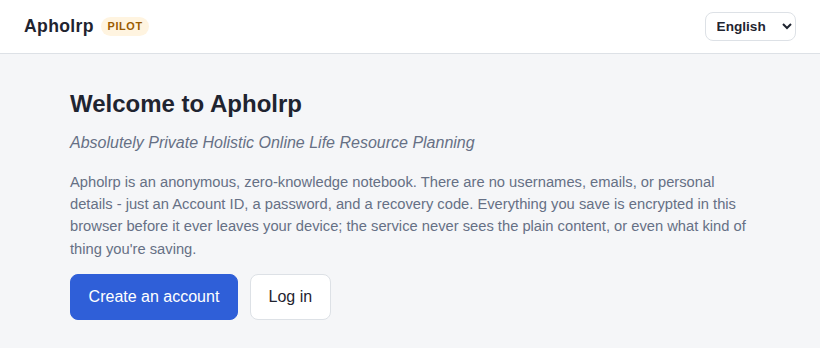
Create an account - no email, no name
It is safe to create an account. You only choose a password. You get an Account ID - a number - and that's all that identifies you. Just go for it.
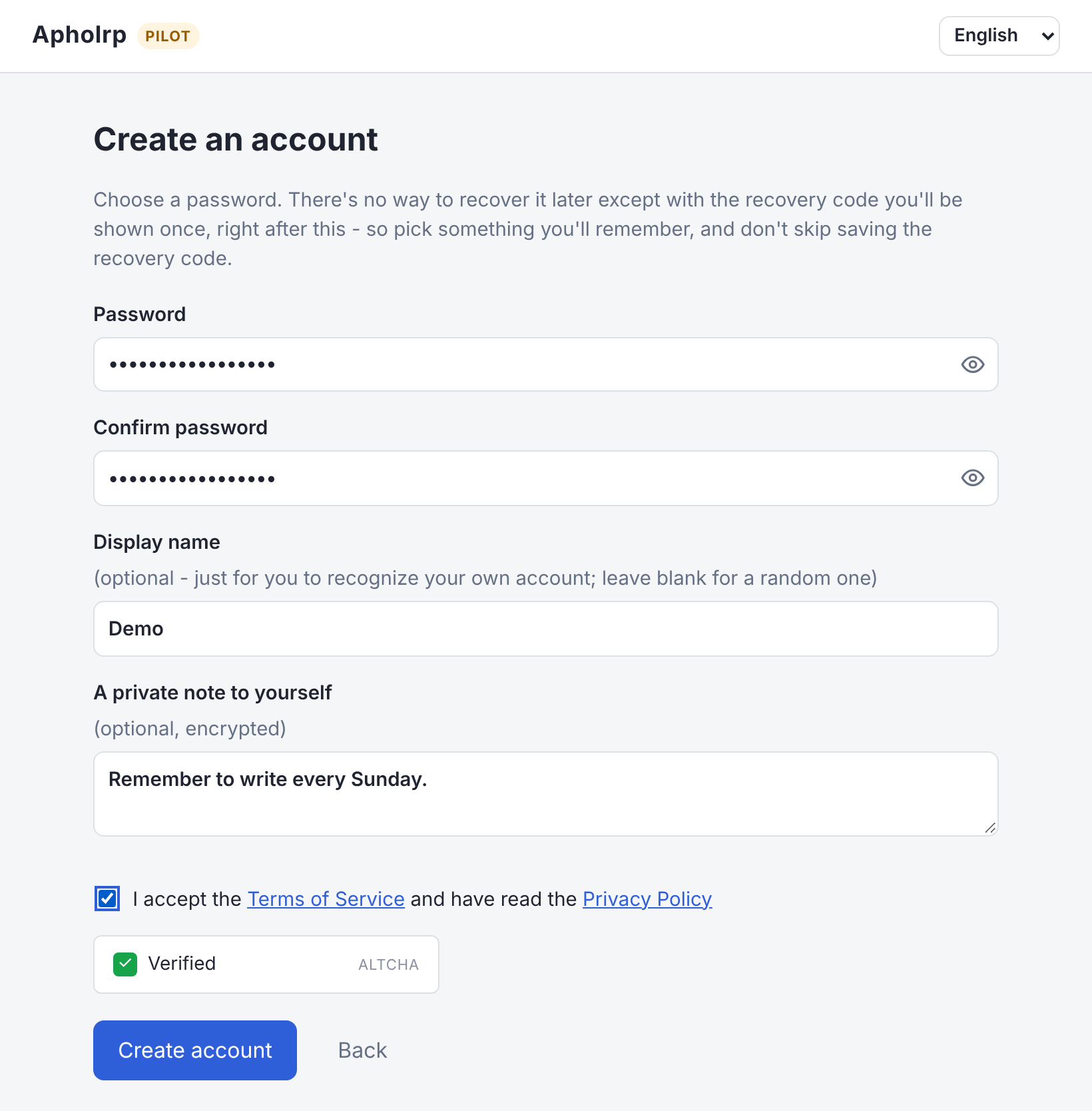
Fill in the account form
Choose a password and type it twice - the eye button
shows what you typed.
Note that a password must be at least eight (8) characters long.
A display name and a private note are
optional; they're encrypted like everything else.
The display name is not your ID. It is just for you to identify yourself on your dashboard.
Your real ID you will get in the next step.
The private note is your motto for yourself in your private life to remind you
like of your purpose, the most critical task or whatsoever.
It is good to have one, but it is not required,
so you can leave it empty and add or change it later on in your account settings.
Tick the box to accept the Terms of Service and confirm you have read the Privacy Policy -
both links open in a new tab, so you can read them without losing what you typed.
An account can't be created without it.
A short automatic security check ("I'm not a robot") runs below the form - you don't
need to do anything.
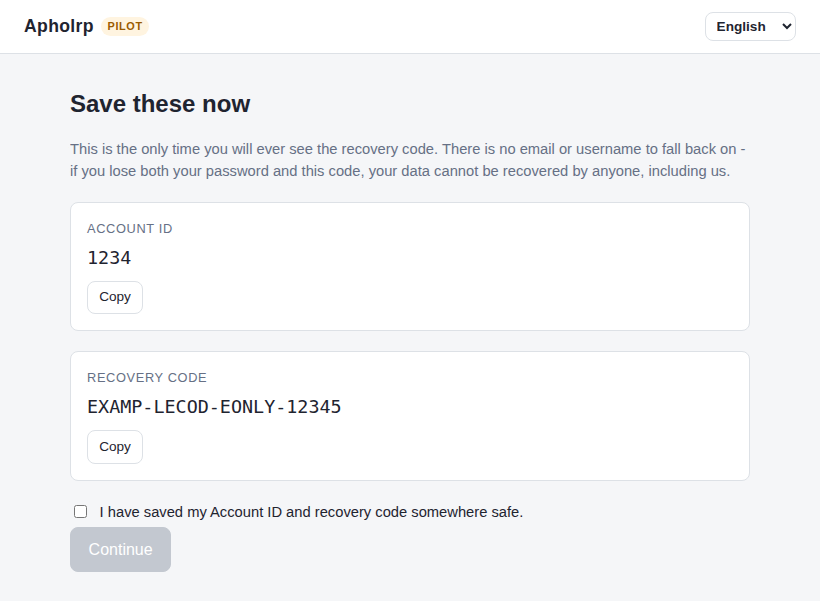
Save your recovery code
Here you can see your real account ID given by the system. That you will use always when logging in again. The recovery code is shown only once. Without it and your password, nobody can open your data - not even us. Keep it somewhere safe, for example on paper or save it to your device somewhere secret place that only you can find.
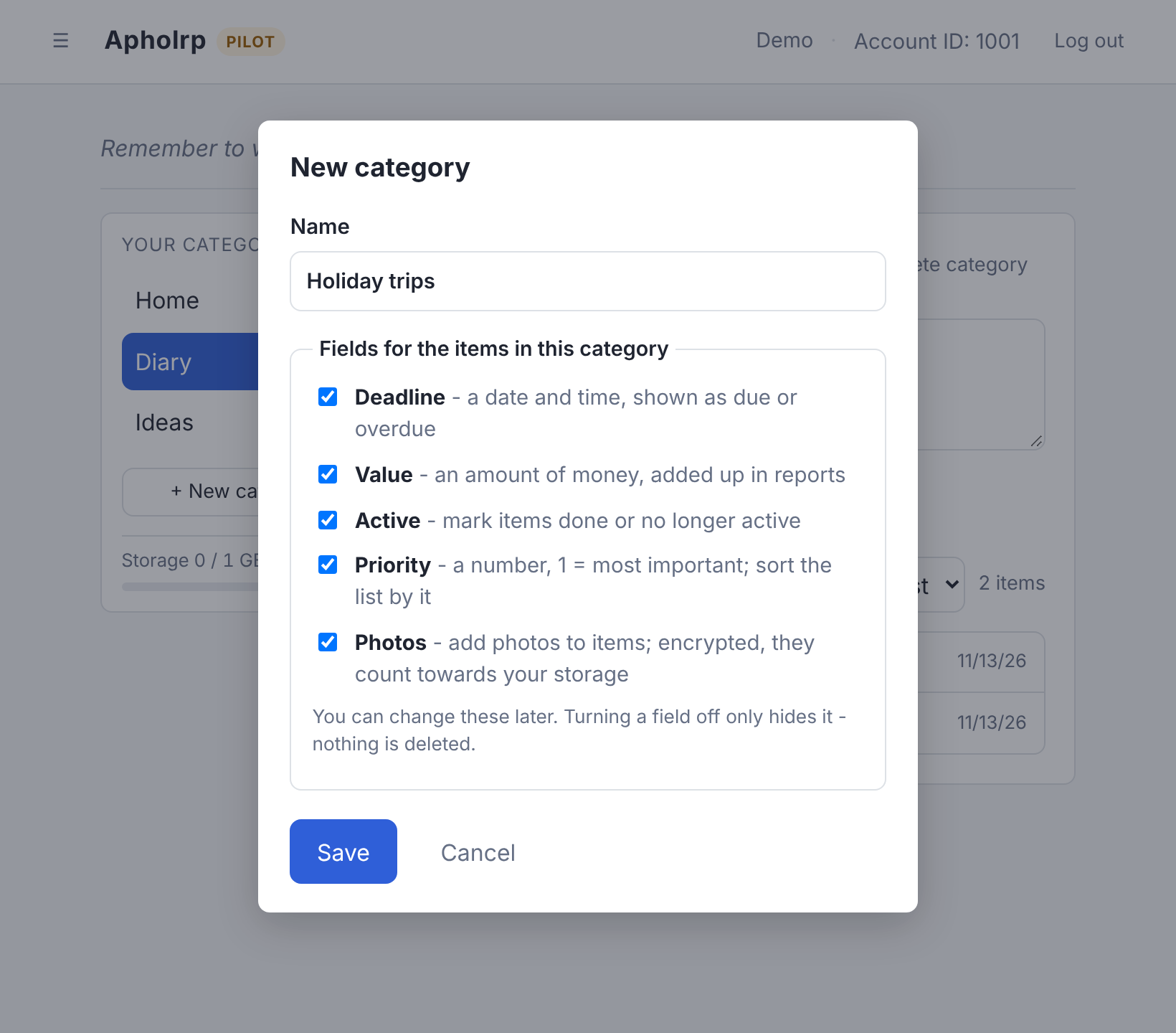
Make your own categories
Categories are yours to name - a diary, a to-do list, a
home budget... etc. whatsoever. You name it.
No one but you can know what it is.
For each one, choose which fields as attributes its items need:
a deadline, a money value, a done/active mark, a priority number, or photos.
Photos are encrypted on your device before they are uploaded, and they count
towards your storage (1 GB on the free plan).
You will learn later on how these work and how to use them.
Add and find your items
Write items in plain text. The first line is the headline
in the list. Search, sort, and see deadlines and values or activity at a glance
if you have set them for the category.
With priorities set, sort the list by priority: 1 comes first, and
items with the same priority follow by deadline and name.
In database all your data will be encrypted.
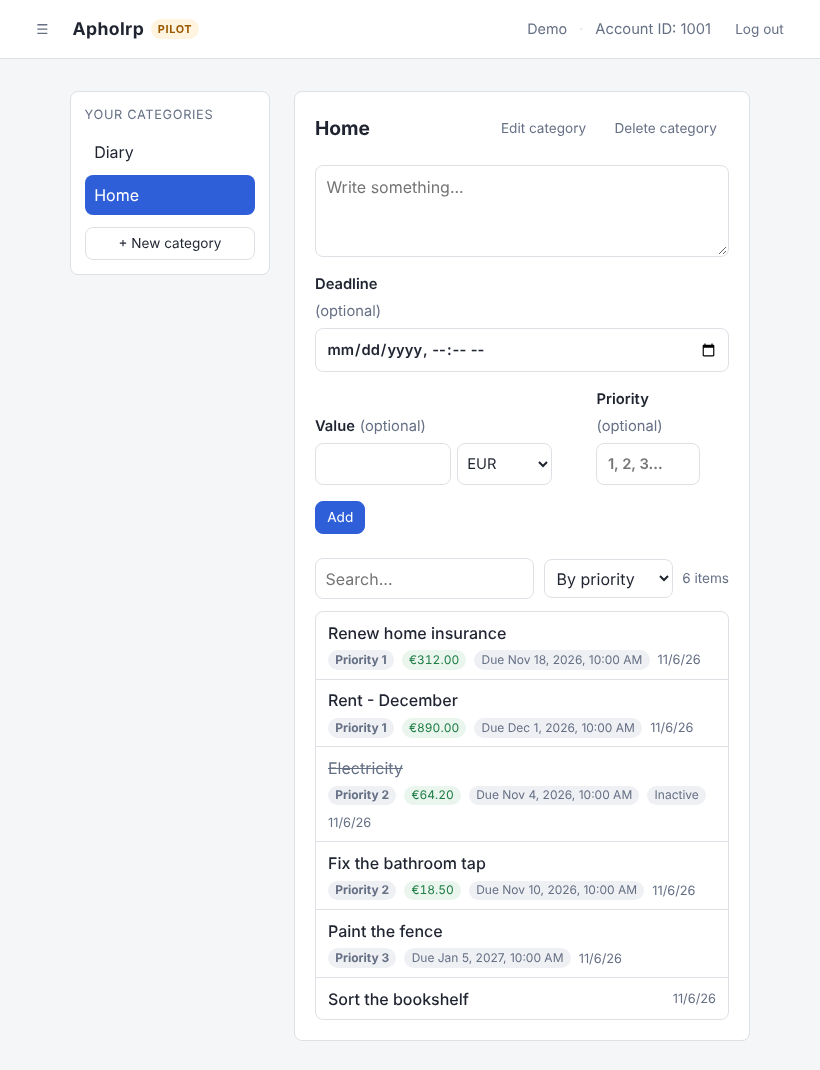
Open an item to read or edit it
Click an item to open it.
Review or edit your data.
Web addresses in the text appear as links under it - they open
in a new tab.
Here you can also delete your item if you so wish.
Save button turns blue when there's
something to save.
Return to list by clicking the "Back to list".
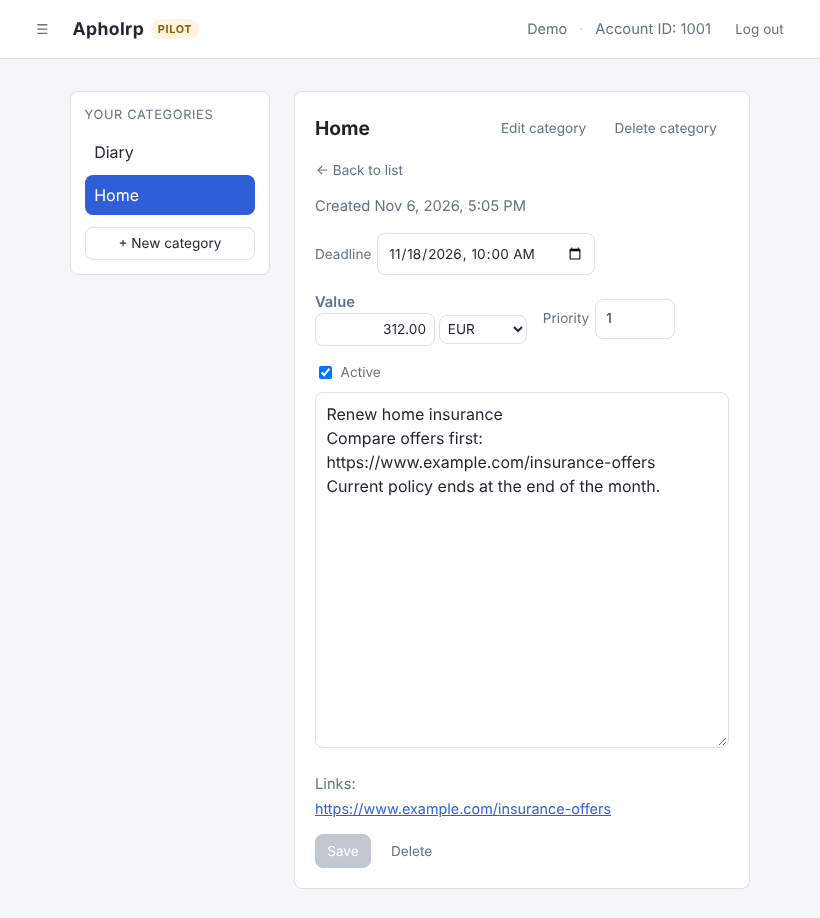
Reports - calculated in your browser
Shows totals per category, overdue and upcoming deadlines. All calculated on your own device - nothing is sent anywhere.
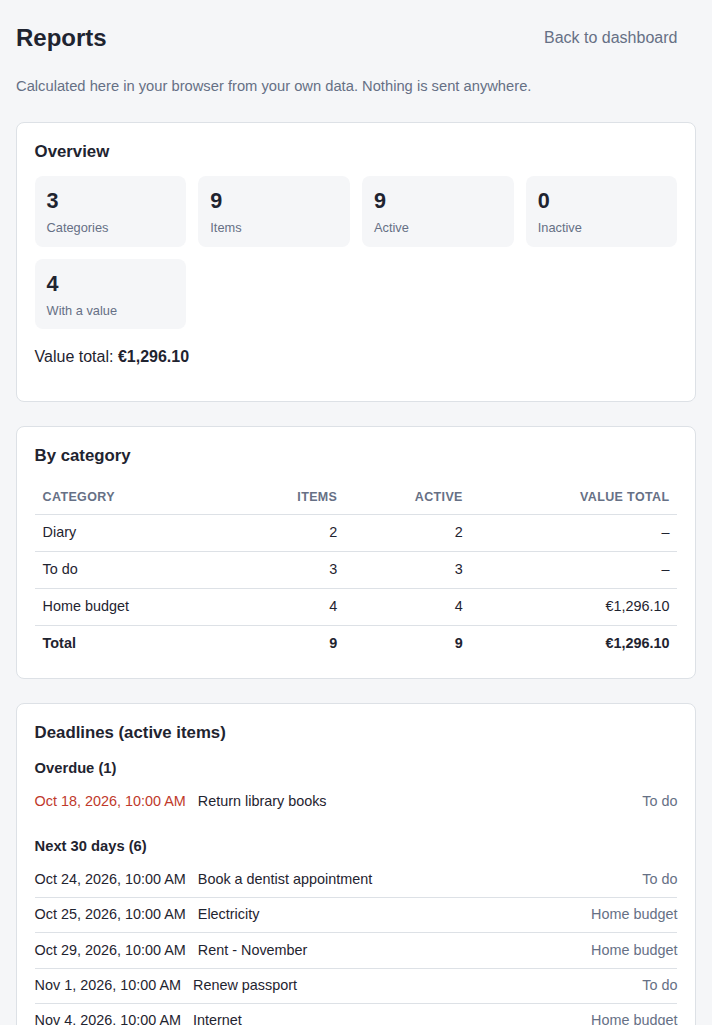
Works on your phone too
No app to install - open the address in your phone's browser. Available in English, Finnish, Swedish, German and French.
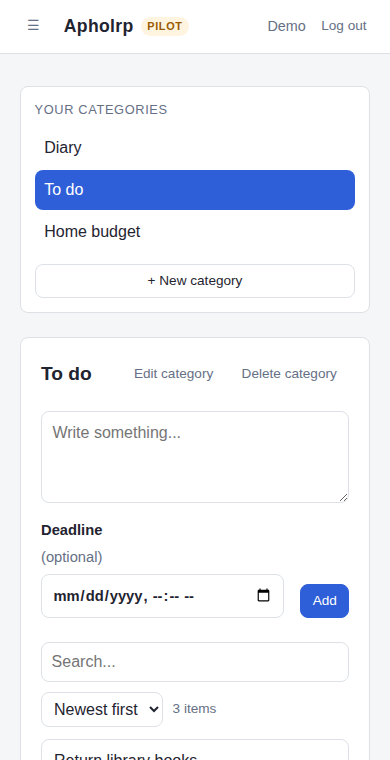
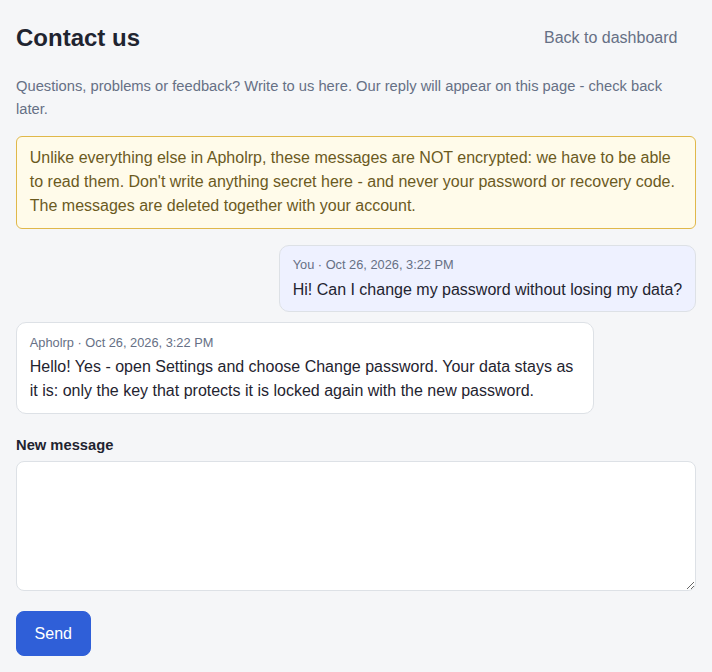
You can contact us in app
Questions, a problem or feedback? Choose Contact in the menu (☰) and write to us. Our reply appears on the same page - open it again later to see it.
Note: unlike everything else in Apholrp, these messages are not encrypted, because we have to be able to read them. So don't write anything secret there - and never your password or recovery code. The messages are deleted together with your account.
Log in with a passkey
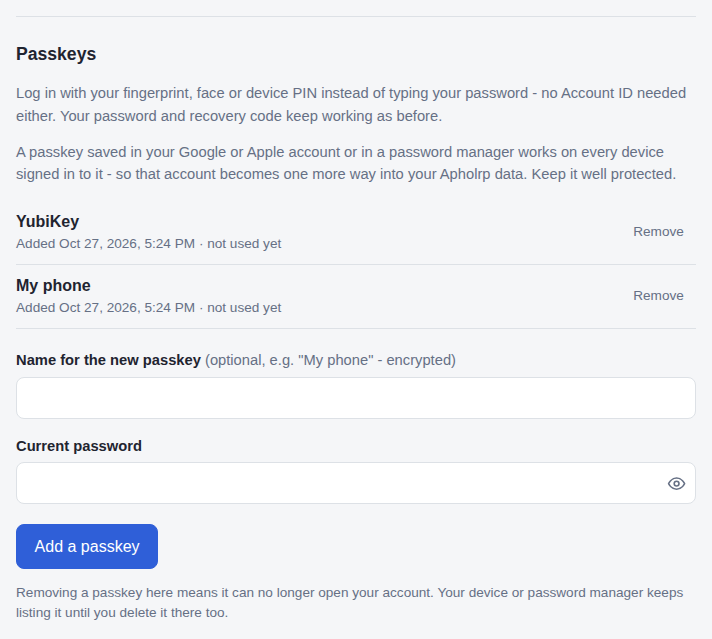
Instead of typing your Account ID and password, you can log in with a passkey - your fingerprint, face, device PIN or a security key such as a YubiKey. Add one in Settings → Passkeys (it asks for your current password first). Then press Log in with a passkey on the login page.
Your passkey doesn't only log you in - it also unlocks your encrypted data, and we never see the key it uses. That needs a device and browser that support it; most recent phones, computers, password managers and security keys do. If yours doesn't, the app tells you and nothing is saved.
Your password and recovery code keep working as before. Note: a passkey saved in your Google or Apple account or in a password manager works on every device signed in to that account, so keep that account well protected.
On iPhone and iPad, adding a passkey takes three taps: Add a passkey, Create the passkey now and Confirm the passkey. There, use the passkey saved on the phone itself (Face ID or Touch ID) - a security key held to the phone may not be able to unlock your data.
Privacy and security
All data you enter is encrypted, except three details of each item:
when it was created, its deadline and its done/active mark -
and the messages you send us from the Contact page.
The user is unknown to the service. It only knows the ID number.
There is automatic logout after 5 minutes without user's activity.
No tracking. The server keeps no record linking you to your account;
for cybersecurity reasons short technical logs without full IP addresses are kept
and deleted after 30 days.
Questions?
Q: How can I remove my account and my data?
A: On the settings page there is "Delete Account" function
by which you can delete your account and all your data once and for all.
Q: Can I download my data before deleting my account?
A: Yes, on the settings page there is "Download your data" function.
Q: How many categories or items there can be?
A: Basically there are no limits for that. Only the storage for photos is limited - 1 GB on the free plan. Text items don't use your storage.
You can see more detailed instructions on our Help page.
Contact: info (at) apholrp.com
Try Apholrp →